
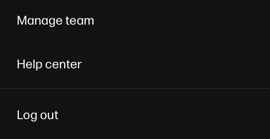
Go to Profile Menu at the top right hand side of the page.
Once you see a small drop-down menu, select Manage Team.
Click the Invite members button.

Enter the email address for the user you wish to invite and click Next.
-
- You can add more than one email address at a time.
- After typing an email address, press the enter key to accept that email and continue on to the next email address. Repeat until you have added all the emails you need.
- You can add more than one email address at a time.
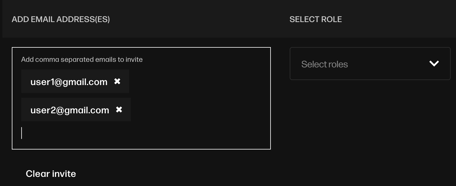
Select the role you would like to the user to have.
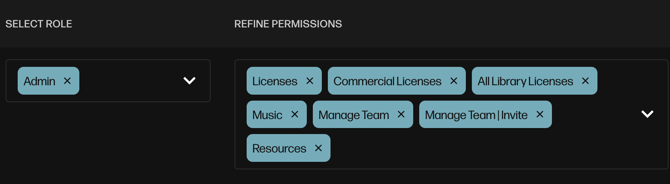
"Admin" will have the following permissions:
- Licenses
- All Library Licenses
- Music
- Manage Team
- Resources
"Member" will have the following permissions:
- Licenses
- Music
- Resources

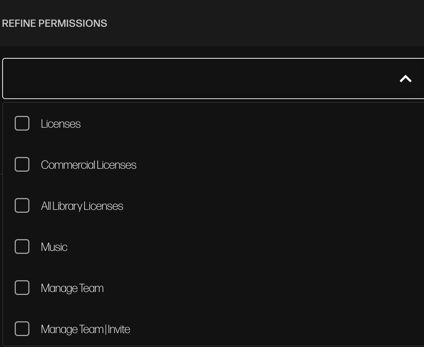
Removing specific permission settings under Refine Permissions will change the user to the "Custom" role.
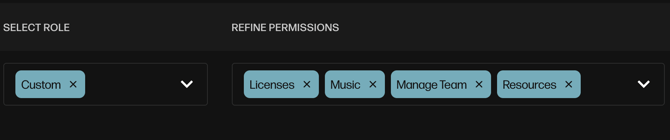

You can also set the permissions of the users you are inviting by checking the boxes for the applicable roles.
Once you have added the email addresses click Send Invite.

The users will now receive a welcome email invitation with instructions to activate their access.