You can use MassiveMusic Studio to view and download a PDF your License Confirmation.
Note: You will need to complete the declaration process for your selected track before the License Confirmation is available. You can view the Music Usage Declaration/License Help Center page for additional information on this process.
To view your License Confirmation, log into the Studio homepage. From there, click the Licenses module, located in the third module to the right side (pictured below).
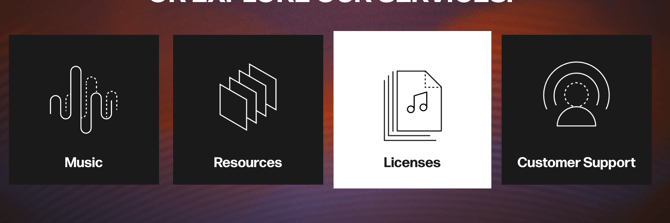
Once you've clicked on the module, you will be taken to the Library Licenses screen. From here, you will be able to toggle between Library Licenses (licenses for library tracks) and Commercial Licenses (licenses for commercial music).

Navigating Library Licenses
Unlike commercial licenses, license extensions do not need to be regularly maintained for library tracks. Once you have declared a new declaration on a library track, that same track is covered for the length of your project.
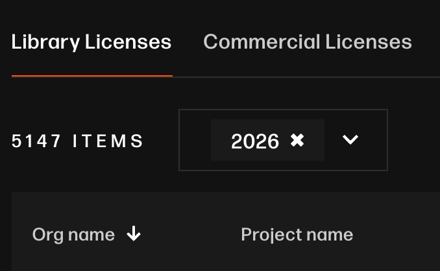
You can see your License Confirmation(s) in the Library Licenses tab. The selection will be noted by the section being underlined in orange.
Once in the Library Licenses tab, you can identify all the license details associated with a project. These include who declared the license, track details, and the date it was declared.

To sort your licenses, select the proper date range within the dropdown menu (pictured below), located at the bottom of the Library licenses section. Once you've selected the proper date range, you can view relevant licenses.
A download icon on the righthand side of each track will also give you the option to download a PDF of that track's license. From this section, you may also search through your licenses using the search bar on the righthand side.