
To license a track to use in your project(s), you will need to make a music usage declaration, which can be easily done from inside your Songtradr Studio workspace.
Note: Before you begin the music usage declaration process, please be sure you have connected all of your social channels. See Connect for more information, along with instructions on how to properly connect channels.
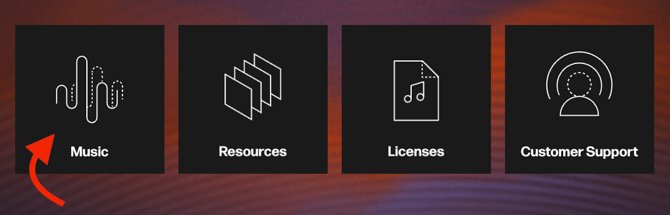
From the MassiveMusic Studio homepage, begin by selecting the Music module, located on the left side (pictured below).
Once you have found your track on the Studio Player Page, you can download the track by clicking the Download button (pictured below), located on the righthand side of the track.

Once you have downloaded your track, click on My Music at the top of your screen. This option can be found in both the Search and Playlists modules.
This will then take you to the My Music screen (pictured below).
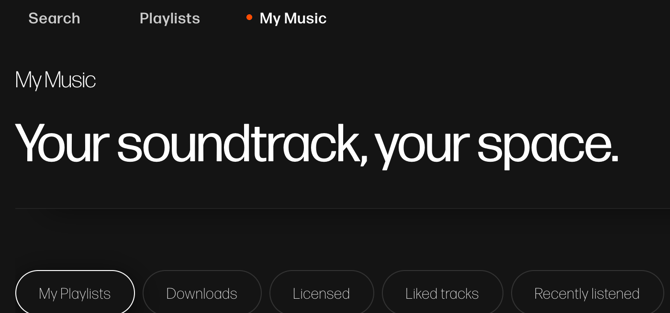
If you select Downloads (pictured below), located in the My Music tabs, you will be able to view all of your downloaded tracks, as well as declare usage directly from the page.
To proceed with a music usage declaration, click on the License? button (pictured below), located on the bottom righthand side of the screen.

Once you've clicked, a popup will appear prompting you to fill out Project details (pictured below). This will begin your music usage declaration, detailing your project along with the intended use of the track.
You must complete all required sections to proceed.
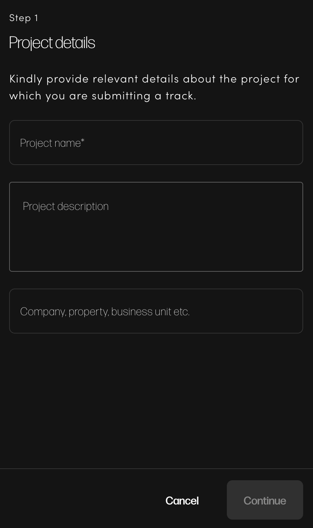
Required fields (indicated with an asterisk) are:
- Project name, Project description, and Company/property/business unit etc.
- The channels that you will be posting on. For social channels (e.g. YouTube), all profiles must already be added to the account before you can select them. See Connect for more information and instructions on connecting.
- Go-live date. This can be an estimated date if plans are likely to change.
- Region(s) the content will be published on.
Please note that you will be able to select multiple social channels by clicking on Save Channel(s) on the bottom right of the usage declaration page.
Once you have added all your channels, click on the orange Continue button for the next steps.
* After you've declared the use, you can go to Licensed on the My Music page to see your Licensed track(s) and download the License Confirmation(s).
