Through the search filters tool, you can configure a specific combination of filters based on your needs, and then save it to be easily reloaded again and again for future use.
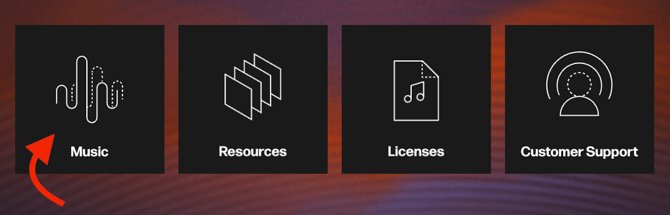
To begin configuring a custom filter search, begin on the Studio homepage, then click the Music module, located on the left side (pictured below).
Save a Search
To begin configuring, type your desired filters into the search bar on the Studio Search page. This can include song factors such as Genre, Mood, Energy, BPM, and Vocals. Examples of potential filters include "Instrumental" or "Female vocals."
Once you have configured the exact combination of track filters that you want and have typed them into the search bar, you can begin the saving process:
- With your custom search filters still in the search bar, click on the "three dot" icon on the far righthand side of the search bar. From there, click Save search.

- You will then see a window allowing you to save your search. You will be able to give your search a custom name in the text box labeled Name your search (pictured below).
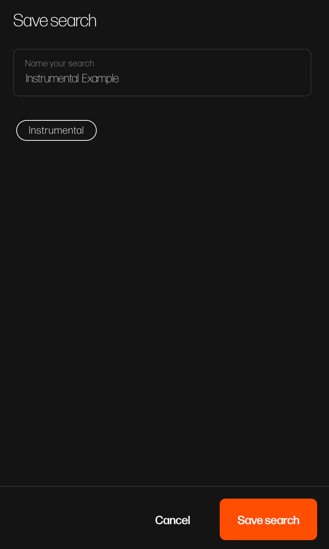
- Once you're satisfied with your name and search, click on the orange Save search button within the popup to complete the process.
Load a Search
Once searches are saved, then can then be loaded whenever you would like to search the same set of filters and terms. When you want to load a previously saved search, follow the instructions below:
- From the Studio Search page, select the "three dot" icon on the far righthand side of the search bar. From there, click the Load search icon (pictured below).

- Once the Load search window has opened, locate the saved search that you want to use from your list.
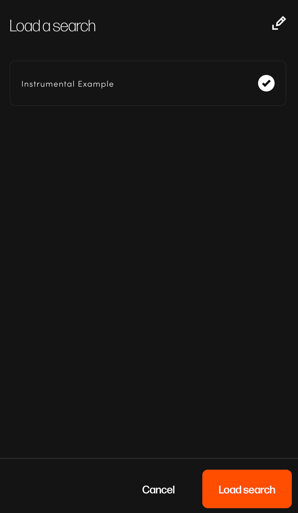
- Once the desired search has been located and selected, click Load search to complete the process (pictured below).
Removing "Saved" Search
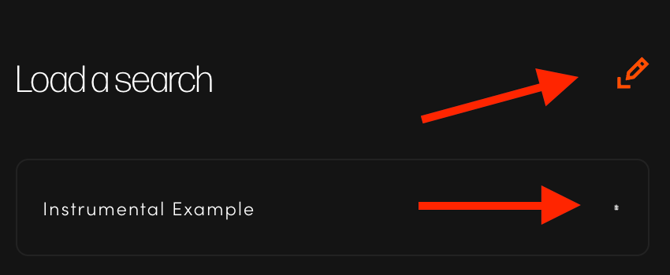
To remove your saved search, you can click the icon on the righthand side (below) and select the small circle next to the saved search title.