
MassiveMusic Studio allows you to use the Search by Filter tools to better refine searches for tracks within your pre-cleared catalog.
To begin using filters, start at the Studio Homepage. From there, click the Music module, located on the left side (pictured below).
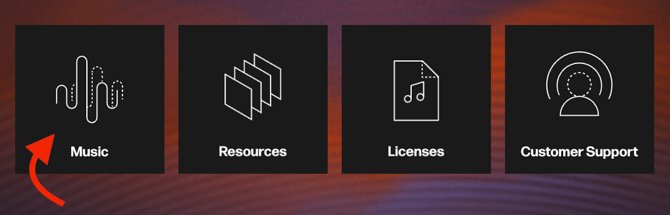
Once you have successfully navigated to Search, you will be taken to the Studio player page, where you can then select the Filter button (pictured below), located on the righthand side of the search bar.

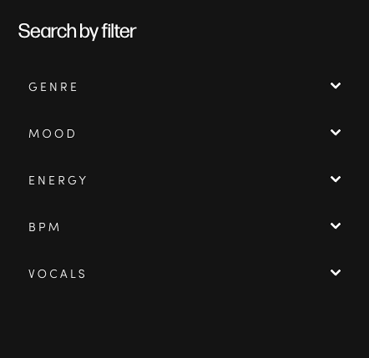
Once you've clicked, you will the be able to filter the library by selecting any of the 20+ filters available.
As standard, there are five pinned filters, which are:
- Genre
- Mood
- Energy
- BPM
- Vocals
Adding and Removing Filters
You can customize your searches by adding or removing filters.
To begin editing your filters, click on the white Filters button on the righthand side of the search bar. When the Filter by... window appears, select the Add and customize filters button (pictured), located at the bottom of the window.
A Configure search filters popup (pictured below) will then appear.
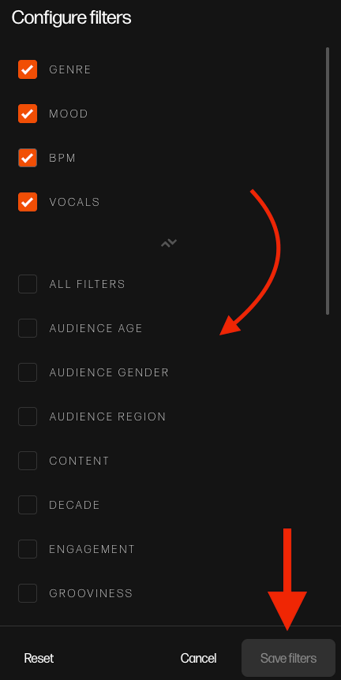
You will then be able to add or remove the pinned filters to your liking.
To add a filter, scroll down the available filters list until you find the right filter for you. Then, click the checkbox to the left of the filter of interest. It will then move to the Pinned filters section. Filters that have not been selected will remain unchecked in the Available filters section.
You can select as many relevant filters as you need to find the perfect tracks.
To remove a pinned filter, uncheck the filter in question and it will be moved back to the Available filters section accordingly.
When you have successfully configured your search filters, click the Update button (pictured above), located on the bottom righthand side of the Configure search filters window, to confirm your configuration.