
MassiveMusic Studio allows you to use the Search by Filter tools to better refine searches for tracks within your pre-cleared catalog.
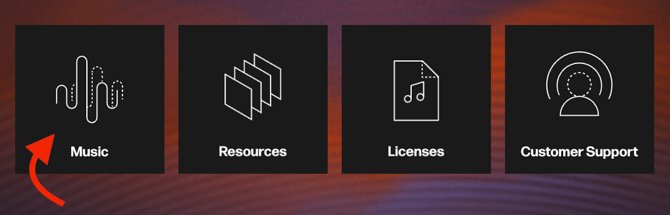
To begin using filters, start at the Studio Homepage. From there, click the Music module, located on the left side (pictured below).
Once you have successfully navigated to Search, you will be taken to the Studio player page, where you can then select the Filter button (pictured below), located on the righthand side of the search bar.

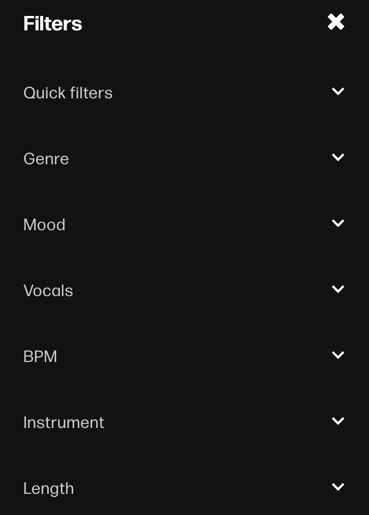
Once you've clicked, you will be able to filter the library by selecting any of the 20+ filters available.
As standard, there are seven pinned filters, which are:
- Quick Filters
- Genre
- Mood
- Vocals
- BPM
- Instrument
- Length
Additional Filters
You can customize your searches by adding or removing filters.
To begin editing your filters, click on the white Filters button on the righthand side of the search bar. When the Filters window appears, select the Show additional filters button (pictured), located at the bottom of the window.
A filters popup (pictured below) will then appear.
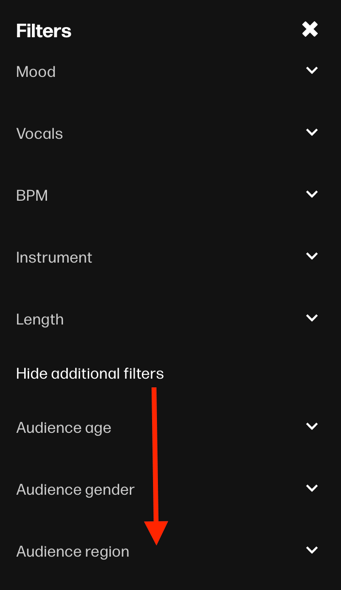
You will then be able to add or remove the filters to your liking by selecting the dropdown button.
To add a filter, scroll down the available filters list until you find the right filter for you. Then, click the dropdown button to the right of the filter of interest. It will then populate on the search player page. Filters that have not been selected will remain unchecked in the Available filters section.
You can select as many relevant filters as you need to find the perfect tracks.